SolidWorks MotionManager
The Complete Guide to Bringing Your 3D Models to Life
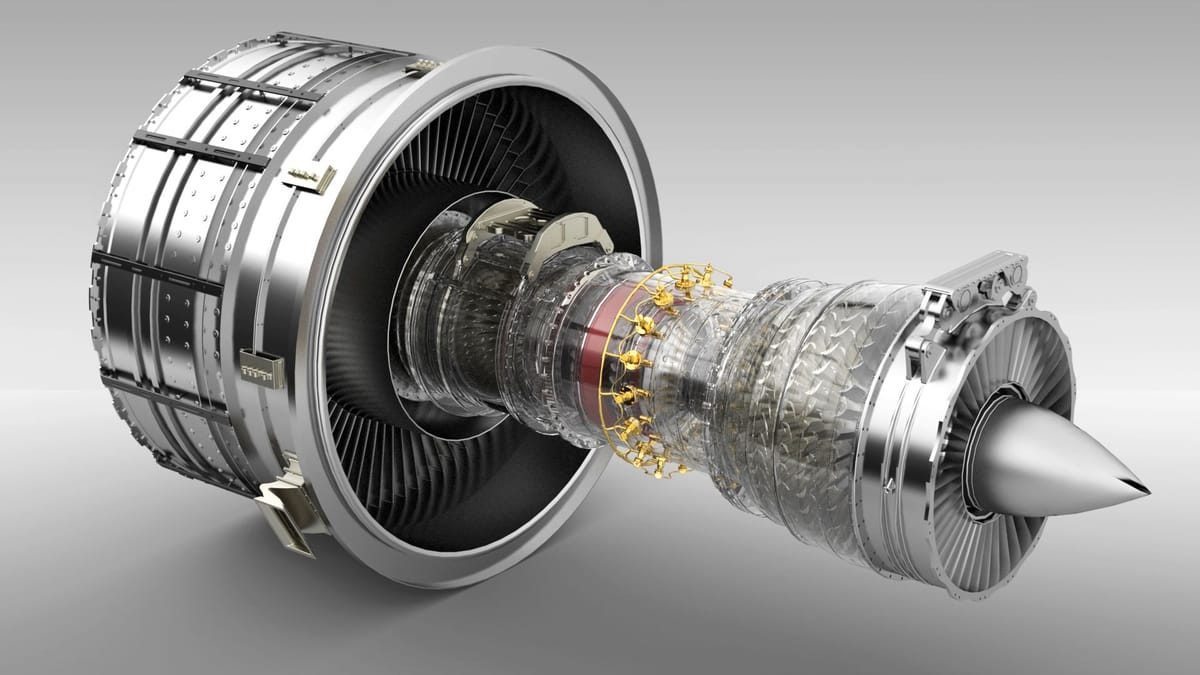
How one mechanical engineer stopped presenting static screenshots and started winning contracts with cinematic product animations — and how you can do the same thing this week.
The Engineer Who Couldn't Sell His Own Design
Marcus Reinhardt had a problem.
He'd spent four months designing a next-generation automatic sorting machine — a gravity-fed system with precision ball channels, adjustable declination angles, and multi-stage separation logic. The CAD model was flawless. Every mate was constrained. Every tolerance was spec'd. The assembly moved beautifully when he dragged components on screen.
But when Marcus walked into the conference room to present the design to the client's procurement team, he had nothing but static screenshots and a 47-slide PowerPoint deck.
"Can you show us how it actually works?" the lead engineer asked.
Marcus clicked to the next slide. Another screenshot. Another angle. Another frozen moment of a machine that was supposed to move.
He watched the energy drain from the room. Three people checked their phones. The procurement manager started flipping ahead in the printed handout.
Marcus lost that contract.
Not because the design was bad. Because he couldn't show how it worked.
If you've ever tried to explain a mechanical assembly with still images — tried to convey the elegance of synchronized motion, the precision of cam-driven mechanisms, the dynamic interplay of gravity and contact forces — you already know the frustration Marcus felt. Your designs deserve better than screenshots. Your clients deserve to see what they're buying. Your career deserves the competitive edge that professional animation delivers.
This is the complete guide to SolidWorks MotionManager — the animation and motion analysis interface built directly into SolidWorks that transforms your 3D assemblies into compelling, photorealistic videos. Whether you're presenting to clients, documenting assembly procedures, detecting interference in complex mechanisms, or analyzing the physics of dynamic systems, MotionManager is the tool that bridges the gap between what your design is and what your audience sees.
What You'll Master in This Guide
Before we follow Marcus through his transformation from static-screenshot engineer to animation-first presenter, here's the territory we're covering:
- What MotionManager actually is (and how it evolved from two separate products)
- The three motion study types — Animation, Basic Motion, and Motion Analysis — and exactly when to use each one
- The three types of motion — Free, Kinematic, and Dynamic — and how they determine your approach
- Core animation concepts that separate amateurs from professionals
- The decision framework for choosing the right study type for any project
- Motion drivers and tools available in each study type
- The professional workflow that produces results efficiently
- When to animate vs. when to shoot video — the honest answer
- The Law of Diminishing Returns and knowing when to stop
Let's get Marcus back in the game.
Act 1: The Status Quo — "I Build Parts, Not Movies"
Marcus had been a SolidWorks power user for nine years. He could model anything. Weldments, sheet metal, surface modeling, multi-body parts — he'd mastered them all. But animation? That was "marketing stuff." That was for the graphics people.
This is where most engineers start. And it's the first misconception that holds you back.
MotionManager Is Not a Marketing Tool — It's an Engineering Tool
SolidWorks MotionManager is an integrated interface that provides access to three distinct motion study types within the SolidWorks environment. It's not a bolt-on. It's not a separate application. It lives inside your assembly, reads your mates, understands your constraints, and uses the geometry you've already built.
Here's what MotionManager actually does:
| Capability | What It Means for You |
| Timeline-based animation | Key frame interface lets you set component positions at specific times — the software interpolates everything in between |
| Animation Wizard | Converts your existing exploded views and physics simulations into key frame animations automatically |
| Design tree integration | The MotionManager design tree mirrors your assembly structure — no re-importing, no re-building |
| Multiple output formats | Export to AVI video files or sequential image files for post-processing |
| PhotoView 360 integration | Produce photorealistic rendered animations with materials, lighting, and environments |
Key Insight: MotionManager doesn't require you to learn a new CAD system. If you can build an assembly in SolidWorks, you already have 80% of the skills needed to animate it.
The History You Should Know
Understanding where MotionManager came from explains why it works the way it does — and prevents confusion when you encounter legacy references.
MotionManager was born from the merger of two separate products:
- SolidWorks Animator — the original animation tool focused on key frame-based visual animations
- COSMOSMotion (now called SolidWorks Motion) — the physics-based motion analysis engine
These two products were unified under a single interface — MotionManager — to give you one consistent workspace for all three motion study types. This is why you'll sometimes see settings and options that seem to belong to "different software." They did. Now they share a home.
Where to Find MotionManager
If you've never opened MotionManager, here's how to enable it:
Menu Path:
Tools → Customize → select MotionManager- Or:
View → Toolbars → MotionManager
The MotionManager pane appears at the bottom of your SolidWorks window, below the graphics area. It contains the timeline, the design tree, and the playback controls.
Act 2: The Inciting Incident — "Wait, There Are THREE Study Types?"
Two weeks after losing the contract, Marcus was venting to a colleague — Priya Nakamura, a senior applications engineer at a SolidWorks reseller. Priya had seen this story a hundred times.
"Marcus, you don't need to learn Blender or hire an animator," she said. "You need about four hours with MotionManager. But first, you need to understand something: there are three completely different motion study types, and picking the wrong one is why most engineers give up."
This is the fork in the road where understanding separates frustration from results.
The Three Motion Study Types — Decoded
Every motion study you create in MotionManager falls into one of three categories. Each has different capabilities, different physics engines (or no physics engine at all), and different licensing requirements.
1. Animation
What it is: The primary motion study type for creating visual animations. Components move by setting their position at specified times, or by the interaction of components through SolidWorks mates and motion drivers.
Critical understanding: With Animation study type, there is no physics involved in the solution. Components have no mass, no momentum, no friction, and no contact. You are the director — you tell each component exactly where to be and when to be there.
Best for:
- Product demonstrations and marketing videos
- Assembly/disassembly sequences
- Exploded view animations
- Any scenario where you control every aspect of the motion
- In-context relationship animations
Included in: Core SolidWorks (all licenses)
2. Basic Motion
What it is: An evolution of physical simulation that combines features from both Animation and SolidWorks Motion. It can use many of the same inputs and contacts between components as SolidWorks Motion, but does not provide analysis output (no force values, no power calculations).
Critical understanding: Basic Motion solves the physics of the problem to create a realistic animation — components have mass, gravity applies, contacts are detected — but you won't get numerical analysis results.
Best for:
- Dynamic systems where physics must be solved for realistic motion
- Gravity-driven mechanisms
- Contact-based interactions
- Any scenario where "telling components where to go" isn't realistic enough
Included in: Core SolidWorks (all licenses)
3. Motion Analysis
What it is: The full motion analysis module powered by SolidWorks Motion. This is where engineering analysis happens — calculating velocities, accelerations, forces, power requirements, and more.
Critical understanding: While Motion Analysis is primarily an analysis tool, it can also output animations. When you need both analysis data AND a realistic animation of a dynamic system, this is your study type.
Best for:
- Determining power required to drive a mechanism
- Calculating component accelerations and velocities
- Force analysis during motion
- Creating animations where maximum physical realism is required
- Servo motor-driven systems
Included in: SolidWorks Premium only
The Comparison Table You'll Reference Constantly
| Feature | Animation | Basic Motion | Motion Analysis |
| Physics solved | No | Yes | Yes |
| Mass/Inertia | Ignored | Applied | Applied |
| Gravity | No effect | Simulated | Simulated |
| Contact detection | None | Yes | Yes |
| Friction | None | Simulated | Simulated |
| Momentum | None | Simulated | Simulated |
| Force/Power output | No | No | Yes |
| Velocity/Acceleration data | No | Limited | Full |
| In-context relationships | Yes | No | No |
| Servo motors | No | No | Yes |
| Standard motors | Yes | Yes | Yes |
| Exploded view animation | Yes | No | No |
| SolidWorks license | All | All | Premium |
| Best for | Controlled visual presentations | Realistic dynamic animations | Engineering analysis + animation |
Pro Tip: If you need to solve both the physics of a problem AND in-context relationships, you'll need to first solve the motion with Basic Motion or Motion Analysis, then import those results into an Animation motion study to handle the in-context relationships.
Act 3: The Struggle — Understanding Motion Itself
Marcus started with what seemed simple: animate his sorting machine. Balls drop in from the top, gravity pulls them down ramps, they bounce off guides, and sort into separate channels based on size.
He opened MotionManager, created an Animation study, and... the balls just floated. No gravity. No bouncing. No contact. They moved in straight lines from Point A to Point B, passing through the machine walls like ghosts.
"Of course they do," Priya explained when Marcus called. "You're using the Animation study type for a dynamic problem. You need to understand the three types of motion — not just the three study types."
The Three Types of Motion
This is where most engineers get tripped up. The motion study type (Animation, Basic Motion, Motion Analysis) is the tool you choose. The type of motion (Free, Kinematic, Dynamic) is the behavior you're trying to create. Matching the right tool to the right behavior is the key decision.
Free Motion
What it is: Components are mathematical volumes with no mass and no physical boundaries. They move from one position to another without regard for anything in their path.
Properties that DON'T exist:
- Gravity
- Momentum
- Force
- Collision
- Mass
Real-world analogy: Imagine you could make objects teleport smoothly from one position to another, passing through walls and through each other.
Example scenario: Two components — a block and a ball — are given starting and ending positions where they must move diagonally across a plate. Each component moves independently. When their paths cross, they pass through each other — no collision, no interaction.
When you use it: Assembly/disassembly animations, exploded views, component highlighting, any scenario where realistic physics would actually make the animation worse (imagine trying to show an exploded view where parts collide as they separate).
Kinematic Motion
What it is: Motion controlled by mates and connections between components. Components move based on enforced or constrained motion and can only take one path regardless of applied forces.
Key characteristic: Changing the mass of any part, the angle relative to gravity, or external loads does not change the motion. The path is fully determined by the constraints.
Real-world analogy: Think of a piston connected to a crankshaft. Regardless of how much force you apply or how heavy the piston is, it can only travel up and down within the cylinder. The path is fixed by geometry.
When you use it: Mechanisms with defined motion paths — gear trains, linkages, cam-followers, slider-crank mechanisms, any assembly where mates fully define the motion.
Dynamic Motion
What it is: Components interact with each other and can take different paths depending on input conditions such as forces, gravity, mass, and initial positions.
Key characteristic: If you change the mass of any component, change the angle of the assembly relative to gravity, change applied forces, or change starting positions, the animation changes. The outcome is not predetermined.
Real-world analogy: Pour a bag of marbles down a funnel. The path each marble takes depends on its size, the size and position of every other marble, the angle of the funnel, and gravity. Run it twice with different starting positions and you get different results.
Marcus's sorting machine was a textbook dynamic system. The balls move by gravity, interact through contact with the machine body and with each other, and their paths depend on starting positions, mass, and the angle of the machine relative to gravity.
The Motion Type Decision Framework
Here's the framework Priya gave Marcus — and it's the framework you should pin above your monitor:
Question 1: Does the physics of the problem need to be solved?
- No → You can use the Animation study type
- Yes → You must use Basic Motion or Motion Analysis
Question 2: Are there in-context relationships that need to be solved?
- No → Proceed with your chosen study type
- Yes → You must use the Animation study type
Question 3: Do you need both physics AND in-context relationships?
- Yes → Solve physics first with Basic Motion/Motion Analysis → Import results into Animation study type
The Decision Matrix
| Motion Type | Recommended Study Type | Alternate Study Type | Notes |
| Free | Animation | — | Only study type that handles free motion properly |
| Kinematic | Animation | Basic Motion | Animation gives you the most control over kinematic systems |
| Dynamic (visualization only) | Basic Motion | Motion Analysis | Basic Motion is simpler when you don't need analysis data |
| Dynamic (with analysis) | Motion Analysis | — | Only study type that provides force/power/acceleration data |
| Dynamic + In-context | Motion Analysis → Animation | Basic Motion → Animation | Solve physics first, then import to Animation for in-context |
Important Clarification: These recommendations are guidelines, not rules. There are scenarios where you might choose differently based on specific requirements. The table above represents what works best in the majority of cases.
Act 4: The Transformation — "Everything Is Just Three Things"
Once Marcus understood the motion study types and the types of motion, Priya introduced him to the concept that changed how he thought about animation entirely.
"Marcus, stop thinking about animation as this huge, complicated process," she said. "Every animation in the world — from a billion-dollar Pixar movie to your sorting machine demo — consists of exactly three things changing over time."
The Three Elements of Every Animation
Whether you're creating a 10-second product demo or a 5-minute assembly sequence, every animation is built from combinations of these three elements:
1. Component Position
What it is: The physical location and orientation of each component at each point in time.
In movie terms: This is the movement of actors, vehicles, props, and set pieces.
In your SolidWorks animation: Each component can be moved to different positions using mates, motors, key frames, or any of the available motion tools.
This is almost always where you start. Component position is the heart of any mechanical animation and typically requires the most work.
2. Component Properties
What it is: Visual and behavioral attributes of components that change during the animation.
Properties you can animate:
- Appearance — change colors, materials, textures mid-animation
- Visibility — make components appear, disappear, or become transparent
- Display mode — switch between solid, wireframe, hidden lines
- Light intensity — brighten, dim, change color of light sources
- Light color — shift lighting mood throughout the animation
- Camera focus — adjust depth of field, focal length
- Many more — virtually any display property can be animated
In movie terms: This is actors changing costumes, makeup artists transforming appearances, lighting changes between scenes.
Example use case: In an assembly animation, you might make the housing transparent at a specific moment so the viewer can see the internal mechanism. Then, once the internal animation completes, the housing fades back to solid.
3. Viewpoint
What it is: The position and orientation of the "camera" — what the viewer sees.
Two ways to control viewpoint:
- SolidWorks cameras — dedicated camera objects placed in the assembly
- Standard view commands — Pan, Zoom, Rotate, and Roll applied to the default viewpoint
In movie terms: This is the camera operator's work — choosing angles, moving through scenes, zooming to details.
The Professional Workflow — Order Matters
Priya taught Marcus a specific order for animating these three elements. This workflow isn't mandatory, but it's the approach that minimizes rework:
Step 1: Component Position (Motion)
↓
Step 2: Component Properties (Appearance)
↓
Step 3: Viewpoint (Camera)
Why this order?
- Position first because it's the foundation. If the motion isn't right, nothing else matters.
- Properties second because they enhance the motion. You need to see the motion working before you decide where to add transparency, color changes, or visibility toggles.
- Viewpoint last because during Steps 1 and 2, you'll need to constantly rotate, zoom, and pan to verify your work. If you lock in camera positions early, you'll fight against your own camera while trying to fix motion and property issues.
Pro Workflow Tip: By leaving viewpoints until last, you maintain complete freedom to inspect your animation from any angle during development. Only when the motion and properties are finalized do you commit to the camera choreography.
Act 5: The Deep Dive — Mastering the Timeline and Key Frames
With the three-element framework in mind, Marcus was ready to actually build his first animation. This is where MotionManager's interface becomes your primary workspace.
The Timeline — Your Animation's Backbone
MotionManager uses a key frame-based interface built into a timeline. If you've ever used video editing software, the concept will be familiar. If you haven't, here's the essential understanding:
What is a key frame?
A key frame is a marker on the timeline that records the state of something (a component's position, a property value, a camera angle) at a specific moment in time. MotionManager automatically interpolates between key frames to create smooth transitions.
Example: You set a key frame at 0 seconds with a gear at 0° rotation. You set another key frame at 5 seconds with the gear at 360° rotation. MotionManager automatically creates all the intermediate frames showing the gear smoothly rotating through 360° over 5 seconds.
Why key frames matter:
- They simplify editing — change one key frame and the motion recalculates
- They provide precise control — you define what happens and when
- They're non-destructive — add, remove, or move key frames without rebuilding
- They allow easy access through the timeline interface
The Animation Wizard — Your Quick-Start Tool
The Animation Wizard is a streamlined interface that converts two common scenarios into key frame animations:
1. Exploded Views → Animations If you've already created an exploded view of your assembly, the Animation Wizard can convert it into a smooth animation showing components separating (exploding) or coming together (collapsing).
2. Physics Simulations → Animations If you've run a Basic Motion or Motion Analysis study, the Wizard can convert those simulation results into key frame-based animations for further editing.
When to use the Wizard vs. manual key framing: Use the Wizard when you have a standard scenario (exploded view or simulation import). Use manual key framing when you need precise control over timing, paths, or when combining multiple motion sequences.
The MotionManager Design Tree
The design tree in MotionManager mirrors your assembly's component structure. Every part, sub-assembly, mate, and feature from your assembly appears in the MotionManager tree.
Why this matters: You don't re-import or rebuild anything. The animation reads directly from your assembly. If you change a component in the assembly, the animation updates accordingly.
The Motion Driver Toolkit
Marcus needed to understand what tools were available to actually create motion. Each motion study type has specific drivers — the tools that make things move.
Motion Drivers by Study Type
| Motion Driver | Animation | Basic Motion | Motion Analysis |
| Key frames (manual positioning) | ✅ | ✅ | ✅ |
| Rotary motor | ✅ | ✅ | ✅ |
| Linear motor | ✅ | ✅ | ✅ |
| Servo motor | ❌ | ❌ | ✅ |
| Gravity | ❌ | ✅ | ✅ |
| Springs | ❌ | ✅ | ✅ |
| Dampers | ❌ | ❌ | ✅ |
| Contact (between components) | ❌ | ✅ | ✅ |
| Force/Torque (applied) | ❌ | ❌ | ✅ |
| Bushings | ❌ | ❌ | ✅ |
| Mate-driven motion | ✅ | ✅ | ✅ |
| Exploded view conversion | ✅ | ❌ | ❌ |
Notice the pattern: Animation gives you the most manual control. Basic Motion adds physics. Motion Analysis adds everything else — including the servo motor, which allows precise position/velocity/acceleration profiles that the other study types can't match.
Building Your First Animation — The Complete Process
Let's walk through the process Marcus followed to create his sorting machine animation. This mirrors the workflow you'll use for any animation project.
Phase 1: Choose Your Motion Study Type
Marcus's situation:
- Sorting machine with gravity-driven ball motion
- Balls interact with machine body and each other through contact
- Different starting positions produce different results
- No engineering analysis needed — just a visual demonstration
Decision:
- Physics must be solved → eliminates Animation study type
- No analysis data needed → Basic Motion is sufficient
- No in-context relationships → no need to import into Animation
Result: Marcus chose Basic Motion.
Phase 2: Define Component Positions (Motion)
This is the core of the animation. Marcus needed to:
- Set initial positions for each ball at the top of the sorting machine
- Define gravity direction and magnitude
- Set contact conditions between balls and machine surfaces
- Set contact conditions between balls and other balls
- Let the physics engine solve the motion
With Basic Motion, Marcus didn't need to manually key frame each ball's position. He set the starting conditions and let gravity and contact physics determine the paths.
Phase 3: Refine and Iterate
Here's where Marcus learned a critical lesson about animation:
Animation iteration is fundamentally different from part modeling iteration.
When you change a dimension in a part, the rebuild takes seconds. When you change a starting position in a dynamic simulation, the recalculation can take significantly longer — and the results might be subtly different in ways that require watching the entire animation to evaluate.
Marcus found himself running the simulation, watching the result, adjusting starting positions, running again, watching again... The cycle was longer than he expected.
Phase 4: Animate Properties
Once the ball motion looked right, Marcus:
- Made the machine housing transparent at key moments to show internal ball paths
- Changed ball colors to match the client's brand palette
- Added material appearances (chrome balls, painted guides) for realism
Phase 5: Set the Camera
Finally, Marcus choreographed the viewpoint:
- Started with a wide establishing shot showing the complete machine
- Zoomed in as the first ball entered the sorting channel
- Followed a single ball through the separation process
- Pulled back to a wide shot showing all balls in their final sorted positions
Phase 6: Output
MotionManager can output your animation in two formats:
| Output Type | Format | Best For |
| Video file | AVI | Direct playback, presentations, sharing |
| Image sequence | Series of image files (BMP, JPG, PNG, TIF) | Post-processing in video editors, maximum quality control |
Pro Tip: For client presentations, export as AVI for convenience. For maximum quality and flexibility, export as an image sequence and compile in a video editor where you can add titles, transitions, music, and adjust compression settings.
Why Animate Instead of Filming? — The Honest Answer
After his first successful animation, Marcus asked Priya a question that every engineer eventually asks: "When should I animate vs. just point a camera at a prototype?"
The answer is more nuanced than most tutorials admit.
Animate When:
The subject doesn't physically exist yet.
You're designing a product that hasn't been manufactured. You need to show how it works for a client review, trade show, marketing campaign, progress meeting, or funding presentation. SolidWorks provides the model. MotionManager provides the motion. PhotoView 360 provides the photorealism. The result looks like a video of the actual product — before a single part has been machined.
You need effects impossible in the physical world.
Computer animation isn't limited by physics. You can:
- Make a solid component float through space without support fixtures
- Apply infinite acceleration — instant starts and stops
- Make components pass through each other to show internal mechanisms
- Make solid objects transparent to reveal hidden features
- Show impossible camera angles — inside the mechanism, through walls, from impossible positions
- Freeze time — stop the animation, rotate the viewpoint, resume
These effects are either impossible to film or require expensive post-production compositing.
Film When:
You have a physical model and need a quick result.
Video cameras and editing software are affordable and capable. If you have a working prototype, filming it can be faster than creating a photorealistic animation — especially for organic or human-interactive scenarios.
Combine When:
You need a product that doesn't exist AND human interaction.
This is the green screen approach used in commercial filmmaking. Animate the product in SolidWorks, film the people separately against a green screen, composite the two in a video editor. The result shows people interacting with a product that doesn't physically exist yet.
Important Limitation: SolidWorks MotionManager is designed for mechanical systems animation. It is NOT intended for animating non-mechanical systems such as human movement, character animation, or computer graphics (CG) movie effects. For those applications, you need dedicated animation software.
The Law of Diminishing Returns — Knowing When to Stop
Six weeks after losing the contract, Marcus had rebuilt his sorting machine animation. He'd spent three weeks on the motion, one week on properties, and was now on his second week of camera refinements. He'd made 47 different versions of the final animation.
Priya looked at versions 38 through 47 side by side.
"Marcus, do you see the difference between these?"
He squinted. "Version 43 has a slightly smoother camera pan at the 8-second mark."
"Marcus, your client won't notice. Stop. Ship it."
This is one of the most important lessons in animation — and one of the hardest for engineers to internalize:
The Law of Diminishing Returns in Animation
At some point, more and more effort produces smaller and smaller improvement.
People who work professionally in computer graphics have a saying:
"Their work is never done, only abandoned."
There are always refinements that can be made:
- Smoother component paths
- Better camera angles
- More realistic lighting
- Tighter timing
- Higher resolution materials
What forces most animations to be "finished" is deadlines. At some point, you must recognize that the additional time invested is not producing proportional improvement in the viewer's experience. When you reach that point, abandon the project and move on.
How to Recognize the Tipping Point
Ask yourself these questions:
- Does the animation clearly communicate the intended message? If yes, you might be done.
- Would the next improvement be noticed by someone watching the animation for the first time? If no, you're definitely done.
- Is the time required for the next improvement justified by the audience? A trade show keynote might justify another week. An internal progress review probably doesn't.
Animation Results Are Subjective — And That's OK
Here's something that will either comfort you or terrify you:
If 10 people review your design against a specification, all 10 should agree on whether the design intent is met. Design validation is objective.
If 10 people review your animation, you might never get consensus on whether it's "good enough." Animation evaluation is subjective.
Subtle differences in component paths, background composition, motion smoothness, camera angles, and pacing cause different people to perceive the output differently.
The professional response to this subjectivity: Define your acceptance criteria before you start animating. What must the animation show? What audience is it for? What's the deadline? When those criteria are met, stop.
Rigid Body Motion — The Fundamental Constraint
Every component in a SolidWorks animation is rigid. Components do not deform, flex, stretch, or compress during the animation. This is true across all three motion study types.
What this means in practice:
- A spring will not visually compress (though spring forces can be calculated in Motion Analysis)
- A rubber seal will not deform when pressed against a surface
- A beam will not flex under load
Workarounds exist. There are animation techniques to simulate deformation — replacing rigid components with pre-modeled deformed versions at specific key frames, using configurations, or creative property changes. These are techniques applied through animation trickery, not actual physics-based deformation.
If you need actual deformation analysis, you need SolidWorks Simulation (FEA), not MotionManager. MotionManager handles motion. Simulation handles stress and strain.
The Three Purposes of Motion Studies
While this guide focuses on creating animations, it's worth understanding all three purposes that MotionManager serves. You'll encounter all three in professional practice.
Purpose 1: Animations
This is our focus. Animations are videos or series of still images used to show how components move. They're for communication — showing clients, colleagues, or stakeholders how a design works, assembles, or functions.
Purpose 2: Interference Detection
Motion studies can detect interference — situations where two components occupy the same physical space — as parts move along their motion paths.
Why this matters: Static interference checking only catches overlaps in the current position. Motion-based interference detection catches overlaps that occur during movement — components that clear each other in the starting and ending positions but collide during the transition.
Purpose 3: Motion Analysis
The engineering analysis purpose. Motion Analysis (using SolidWorks Motion) calculates:
| Variable | What It Tells You |
| Velocity | How fast each component moves at each moment |
| Acceleration | How quickly velocity changes — critical for inertial loads |
| Force | Contact forces, reaction forces, applied forces throughout the motion |
| Torque | Rotational forces at joints and connections |
| Power | Energy required to drive the mechanism — essential for motor sizing |
| Momentum | Linear and angular momentum of the system |
| Energy | Kinetic, potential, and total energy at each time step |
For detailed Motion Analysis training, see the SolidWorks Motion course offered by your local SolidWorks reseller. This guide focuses on animation output.
Marcus's Second Chance — The Presentation That Won
Three months after losing his first contract, Marcus got a second opportunity. Different client, similar product — an updated sorting machine with improved channel geometry and a new ball-feed mechanism.
This time, Marcus didn't bring screenshots.
He brought a 90-second animation:
- Opening shot: Wide angle establishing the complete machine, slowly rotating to show all sides. Components were rendered with realistic chrome, painted surfaces, and ambient lighting.
- Seconds 5-15: The housing fades to transparent, revealing the internal channel geometry. Camera smoothly moves inside the machine.
- Seconds 15-40: Balls are released from the top. Gravity takes over. The Basic Motion physics engine drives every ball's path — bouncing off channels, interacting with each other, sorting by size. Every collision is physically accurate.
- Seconds 40-60: Camera follows a single ball through the complete sorting process, from entry to final collection bin. A cutaway view shows the ball navigating the internal guide geometry.
- Seconds 60-80: Return to full machine view. All balls are now sorted. Camera slowly pulls back to reveal the complete sorted result.
- Final 10 seconds: Machine fades away to show only the sorted ball groups, highlighting the sorting accuracy.
The procurement team watched in silence. When it finished, the lead engineer said:
"Play it again."
Marcus won the contract.
Your Action Plan — Start Animating This Week
You don't need Marcus's experience level or Priya's expertise to start creating effective animations. Here's your step-by-step action plan:
Step 1: Open MotionManager (Today)
Open any assembly you've already built. Enable the MotionManager pane (View → Toolbars → MotionManager). Familiarize yourself with the timeline, design tree, and playback controls.
Step 2: Create Your First Animation Study
Right-click in the MotionManager and create a new motion study. Start with the Animation study type — it's the simplest and requires no physics setup.
Step 3: Set Two Key Frames
Move the timeline to 0 seconds. Position a component. Move the timeline to 5 seconds. Reposition the component. Press Play. You've created your first animation.
Step 4: Attempt Basic Motion
Create a new study using Basic Motion. Add gravity. Add contact between components. Watch what happens when physics drives the motion instead of key frames.
Step 5: Master the Decision Framework
Use the decision matrix from this guide to choose the right study type for your next real project.
Step 6: Build Your First Client-Ready Animation
Pick a current or recent project. Animate the core mechanism. Add property changes (transparency, material appearances). Set camera positions. Export to AVI.
Show someone who matters.
Quick-Reference: The Complete Decision Guide
Use this table when starting any new animation project:
| Your Situation | Motion Type | Recommended Study | Physics Needed? | Analysis Output? |
| Exploded view animation | Free | Animation | No | No |
| Assembly/disassembly sequence | Free | Animation | No | No |
| Gear train demonstration | Kinematic | Animation | No | No |
| Linkage mechanism | Kinematic | Animation | No | No |
| Cam-follower visualization | Kinematic | Animation | No | No |
| Gravity-fed system | Dynamic | Basic Motion | Yes | No |
| Ball-sorting machine | Dynamic | Basic Motion | Yes | No |
| Collision visualization | Dynamic | Basic Motion | Yes | No |
| Motor sizing study | Dynamic | Motion Analysis | Yes | Yes |
| Power requirement analysis | Dynamic | Motion Analysis | Yes | Yes |
| Component acceleration study | Dynamic | Motion Analysis | Yes | Yes |
| Dynamic system + in-context | Dynamic | Motion Analysis → Animation | Yes | Partial |
Key Formulas and Concepts Reference
Frame Rate and Duration
Total Frames = Frame Rate (fps) × Duration (seconds)
| Frame Rate | Use Case | Frames per 10s |
| 15 fps | Basic preview / draft quality | 150 |
| 24 fps | Film standard / cinematic look | 240 |
| 30 fps | Standard video / presentations | 300 |
| 60 fps | Smooth motion / slow-motion source | 600 |
Animation Timing
Playback Time = Number of Key Frames × Time Between Key Frames
Component Speed = Distance Traveled / Time Between Key Frames
Angular Speed = Rotation Angle / Time Between Key Frames
Output File Size Estimation
Estimated Size (MB) ≈ (Width × Height × 3 × fps × Duration) / (1,000,000 × Compression Ratio)
| Resolution | Width × Height | Typical Use |
| 720p | 1280 × 720 | Email, quick review |
| 1080p | 1920 × 1080 | Presentations, standard delivery |
| 4K | 3840 × 2160 | Trade shows, high-end marketing |
Final Thoughts — Your Designs Deserve to Move
Marcus's story isn't unique. Engineers everywhere have powerful designs locked inside static screenshots. The gap between what your assembly can do and what your audience sees it do is the gap between a lost contract and a won one.
MotionManager closes that gap.
It's already in your SolidWorks installation. It already reads your mates, your components, your constraints. The learning curve isn't steep — it's just different from what you're used to. You're not learning a new CAD system. You're learning to communicate what your CAD system already knows.
The best time to start animating your designs was years ago. The second best time is today.
Your turn: What's the first assembly you're going to animate? Is it a client presentation, an internal review, or just to see what's possible? Drop your answer below and let's get the conversation started.